Create a board
You get a canvas in your project, of the kind that suits the job, ready to name and fill.
The five kinds
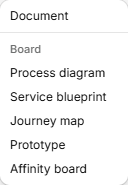
- Process diagram: steps, decisions and start or end points.
- Service blueprint: a process diagram with horizontal bands, such as frontstage and backstage.
- Journey map: steps on a grid of rows and columns.
- Prototype: the clickable screens.
- Affinity board: quotes sorted into clusters. See Sort quotes on an affinity board.
For what each layer is for, see The three layers.
To see who else is on the board, and what happens when you both edit, see Work on a board with other people.
Create a board
- Click New at the top of the workspace.
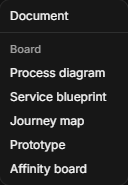
- Under Board, pick a kind.
The board opens at once, named "Untitled" plus its kind, such as "Untitled affinity board". It doesn't ask you for a name.
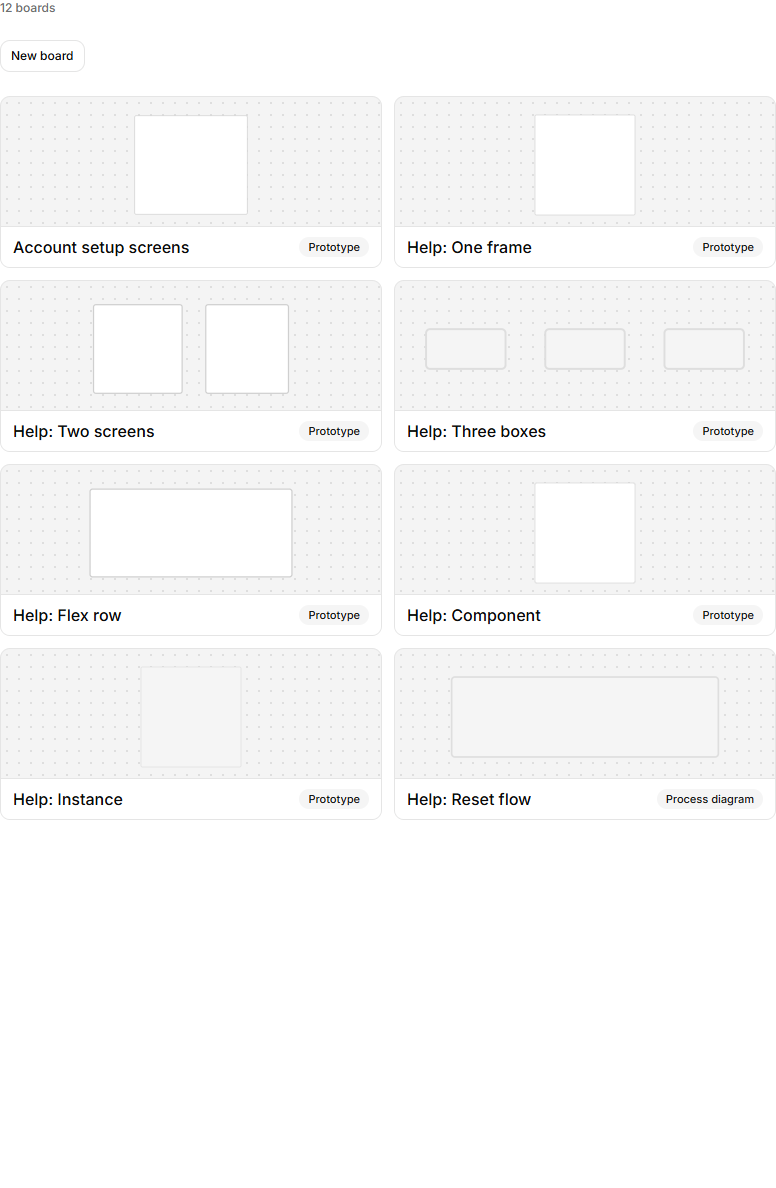
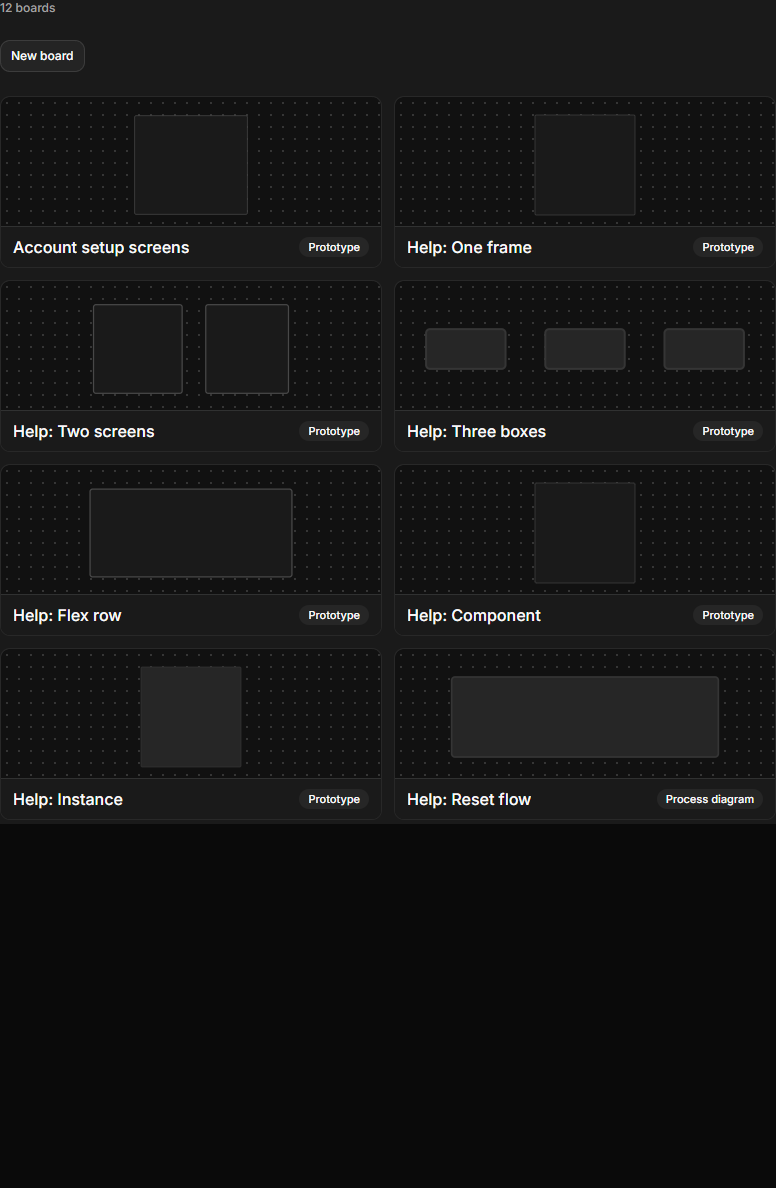
You can also click Boards in the tree, then New board, choose a Type, and click Create board.
The bar at the bottom
Every board has one bar at the bottom of the canvas. It begins with the mode switch (see below), before the tools. Next are the board's tools, each with its key letter: Select, Frame, Line, Box and Text on a prototype, and the + Step, + Decision, + Emotion, + Cluster and similar buttons on the other kinds. Hold the pointer over one to see its key. On a narrow canvas the letters hide.
Then come Zoom out, the zoom % (such as 100%), Zoom in and Fit to view. Click the zoom % for a menu: Zoom to fit (Shift+1), Zoom to selection (Shift+2), 50%, 100% (Shift+0) and 200%. Zoom to selection is greyed out until something is selected. The ? at the end opens the keyboard shortcuts sheet for this kind of board. The full list is on Keyboard shortcuts.
A board reopens where you left off: it remembers your last view for each board, in this browser only. With no remembered view, a board opens showing all of it. If that would make it too small to read, a prototype opens on its first screen instead, and the other kinds open at 70% from their top-left corner.
Switch modes
The first thing on the bar is the mode switch: Process, Blueprint, Journey, Prototype and Affinity, with the current one highlighted. A mode is one of the five kinds of board.
Click a mode to open the board this one is linked to, or, if it isn't linked to one of that kind, the newest board of that kind in the project. A page of a prototype counts as its prototype.
A mode the project doesn't have yet shows a +, and its button is named "New" plus the kind, such as New affinity board. A mode with a + makes that board and opens it.
On a narrow canvas the switch becomes one button with the current mode's icon (and its name, such as Process, when there is room). Click it for a list of the five. Widen the board or close a side panel to get the full row back.
The minimap
Process diagrams, blueprints, journey maps and affinity boards can show a small map of the board. It is off by default. Open the zoom % menu and tick Show minimap. It is greyed out with "Needs a wider canvas" when the canvas is too narrow, so widen the board or close a side panel. Your choice is kept in this browser. Prototype boards have no minimap.
Draft with AI
On any open board, open the Ask AI panel (top right of the board, or Ctrl/Cmd+J) and type what to make. A Draft card appears under the reply and adds a first draft beside your own work; Keep or Remove it. See Draft a board with AI.
Name it
- Right-click the board in the tree and choose Rename, or select it and press F2.
- Type the name and press Enter. Escape cancels.
A blank name changes nothing.
Pages
A prototype can hold several pages, each its own canvas. See Add pages to a board.
Find your boards
Click Boards in the tree. Each board is a card with its kind beside the name. The tree's Deleted folder holds boards you have deleted, with a Restore button on each.