Make a prototype clickable
You get screens that lead to other screens, so you can click through them in Present.
You need at least two screens. See Draw screens and shapes on a prototype. An interaction can start from any element, such as a box or a text label, and always leads to a screen.
Link an element to a screen by dragging
- Select the element.
- In the inspector, click the Prototype tab. Round handles appear at the middle of its sides. A side drops when the element is under 16 screen pixels that way: a flat or upright line has two handles, a very small shape one, and zooming in brings them back.
- Drag a handle onto the screen it should open. The screen it will land on is outlined while you drag.
- Let go.
An arrow now runs from the element to the screen, and the interaction is On click. Click an arrow to select the element it starts from. For moving, removing and undoing arrows, see Draw and edit the arrows to screens.
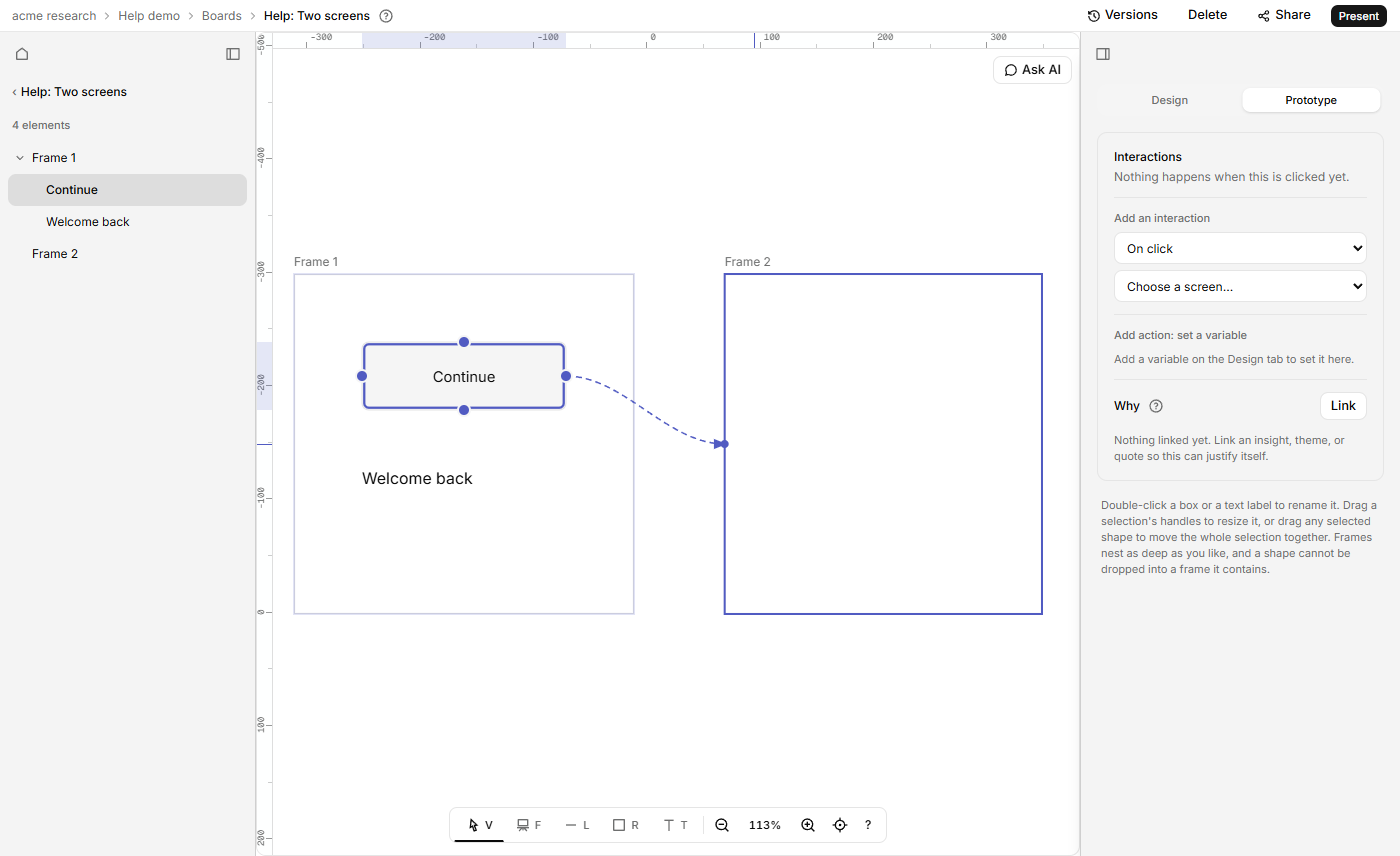
Link it from the inspector instead
- Select the element and open the Prototype tab.
- Under Add an interaction, pick a Trigger.
- Pick a screen in Destination, "Choose a screen…". It saves as soon as you choose.
Each interaction then appears in a list, with a menu to change its screen (Destination for and its trigger) and a bin icon, named for its trigger, such as Remove the On click interaction, to take it away. One element can have several triggers, each with its own screen. If the board has no screens yet, the tab says "Draw a frame first".
Which triggers play
There are 12 triggers, in four groups: Press & click, Mouse pointer, Touch & mobile and Automated & hardware. Present plays four of them: On click, On press, Mouse down and Mouse up. Any other trigger is kept, and its row says "Stored, but not simulated in a presentation yet." After delay works only on a screen itself, not on an element inside one.
Change a value instead of, or as well as, going to a screen
In the Prototype tab, Add action: set a variable sets or toggles a variable on a trigger, and it can sit beside the screen the same trigger opens. See Change a prototype while it plays with variables.
Choose where the story starts
- Select a screen, open the Prototype tab, and click Start a flow here.
- Type a name in Flow starts here. "Flow 1" is suggested. Press Enter.
While the Prototype tab is open, a ▶ badge with the name sits above the screen. Present opens on the first flow start, or on the first screen if you have not set one. To undo it, click the bin icon (Remove this flow start), or clear the name.
With nothing selected, the Prototype tab lists your flow starts. Click one to select its screen.
If it doesn't work
- A click in Present does nothing. Check the trigger. Only the four above play.
- No handles on the element. Open the Prototype tab, and select one element. Handles don't show for a group of shapes.
- A copy has no interactions. A duplicate, a pasted copy or an Alt+drag copy has the shape only. Link the copy again.