Quick start: from sign-up to presenting
You go from an empty account to a prototype screen that shows the research behind it, in about ten minutes. For the idea behind the steps, read The three layers.
Set up and add research
- Go to
/signup, enter your email and a password of 8 or more characters, and click Sign up. Confirm through the link in the email, then log in. On Create your organization, type an Organization name and click Create organization. - Click Create your first project (later: New project). Type a Project name, such as "Onboarding study", and click Create project.
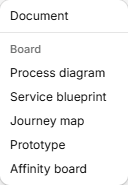
- Click New, then Document. On the Paste text tab, paste a transcript into Transcript or notes, or use Upload file for a .txt, .md, .pdf or .docx file. Leave Title empty if you like. Click Add document.
Find the why
- Open the document and select a sentence. Click Highlight. The quote turns amber and a card appears. In Add tag… type a tag and press Enter.
- Click Themes in the tree, then New theme. In the theme, click Add highlights, tick two quotes and click Add 2.
- Click Insights, then New insight. Click Edit summary, write what you found in Summary (Markdown works) and click Save. Click Link themes, tick your theme and click Save.
Build a screen and present it
- Click New, then Prototype. Press F and click the canvas for a screen. Press R and click inside the screen for a box. Double-click the box and type "Sign up".
- The box is still selected (if not, double-click it). In the inspector, open the Prototype tab and click Link next to Why. In Link evidence, pick the theme from Themes, or a quote from Quotes.
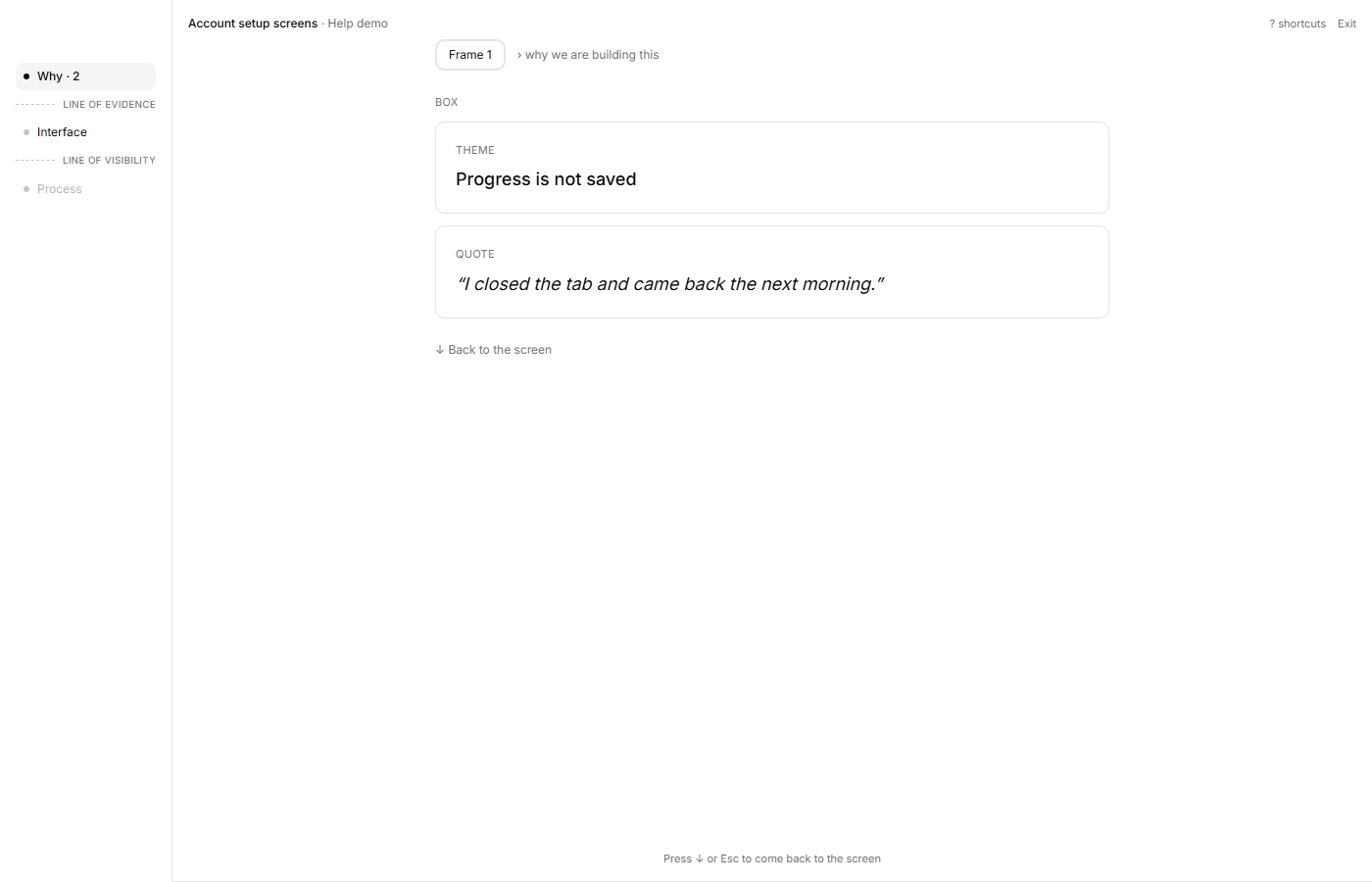
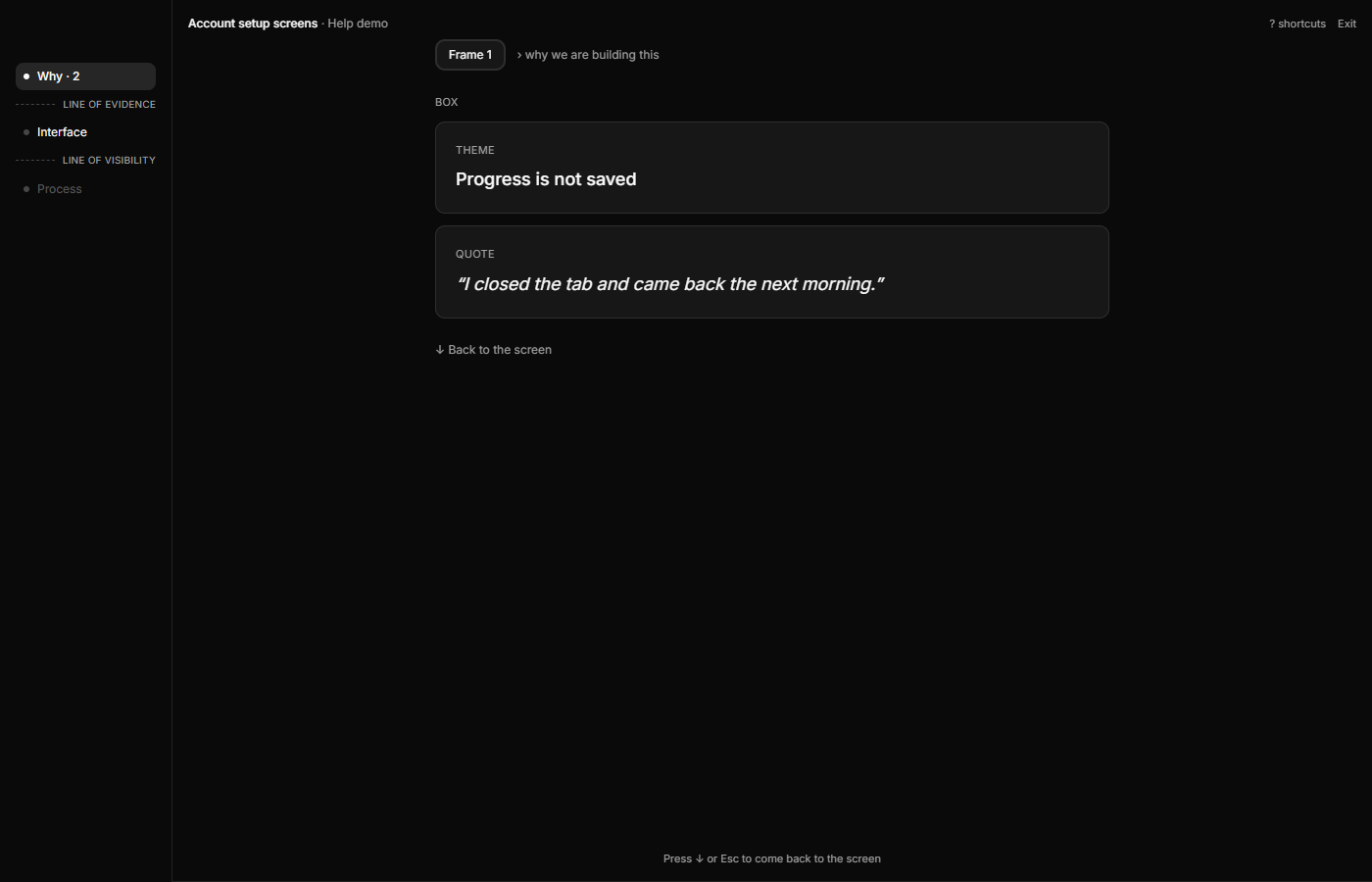
- Click Present. Press ↑ to see the why. With more than one screen, Present opens on the first. If ↑ does nothing and the rail on the left says "Nothing linked to this screen" under Why, press ← or → to reach the screen you linked. Press ↓ or Esc to return to the screen. Click Exit to leave.
If it doesn't work
- ↑ does nothing in Present. Nothing is linked to anything on that screen. Go back to step 8 and link evidence to the screen or to an element inside it. With more than one screen, Present opens on the first. If the rail on the left says "Nothing linked to this screen" under Why, press ← or → to reach the screen you linked.
- The shortcuts do nothing. Click an empty part of the canvas first. A text field that has focus keeps the keys.