Create and rename a project
You get a project to hold the documents, highlights, themes, insights and boards for one piece of research.
Create a project
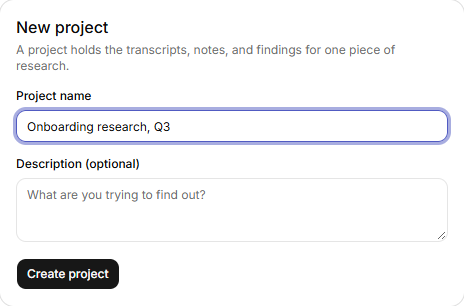
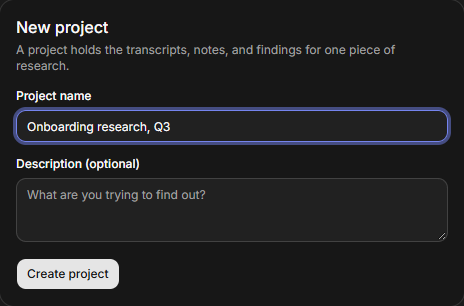
- Click New project, on the Projects page or your organisation's home page.
- Type a Project name. It is required.
- Optionally fill in Description (optional).
- Click Create project.
The project opens on its overview. If the organisation has none yet, the Projects page offers Create your first project instead.
The example project
Research Mate tour (example) is a finished study: six interview transcripts with highlights, themes and insights, an affinity board, a journey map, and prototype screens in wireframe and high fidelity, linked to the quotes behind them. A new organisation gets it unless its maker turned it off under Profile. It is an ordinary project: change it, or archive it when you are done.
With no active projects, the Projects page also offers Add the example project. Only owners and admins see it. If the organisation already has the example, it says "This organization already has the example project."
Rename a project
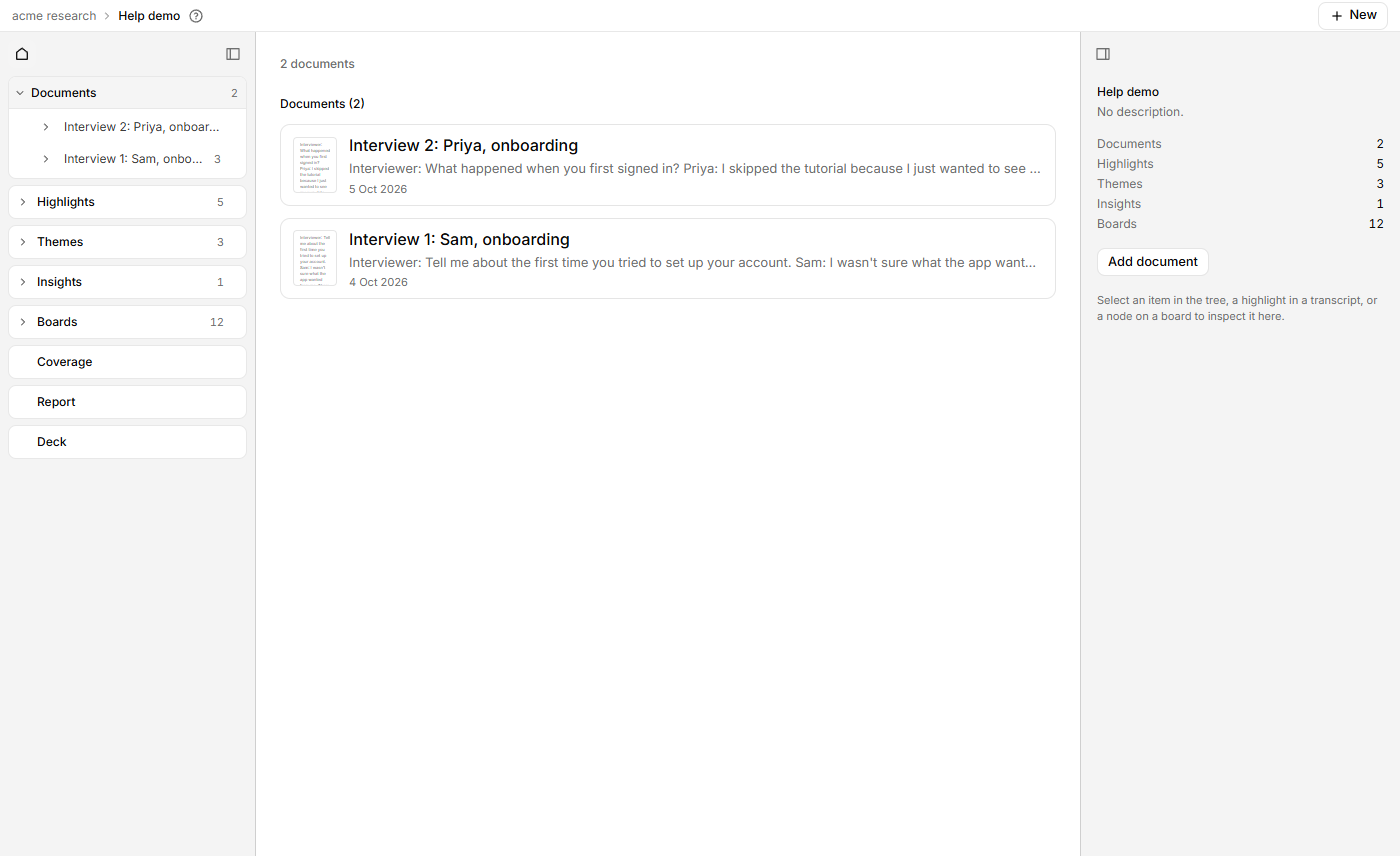
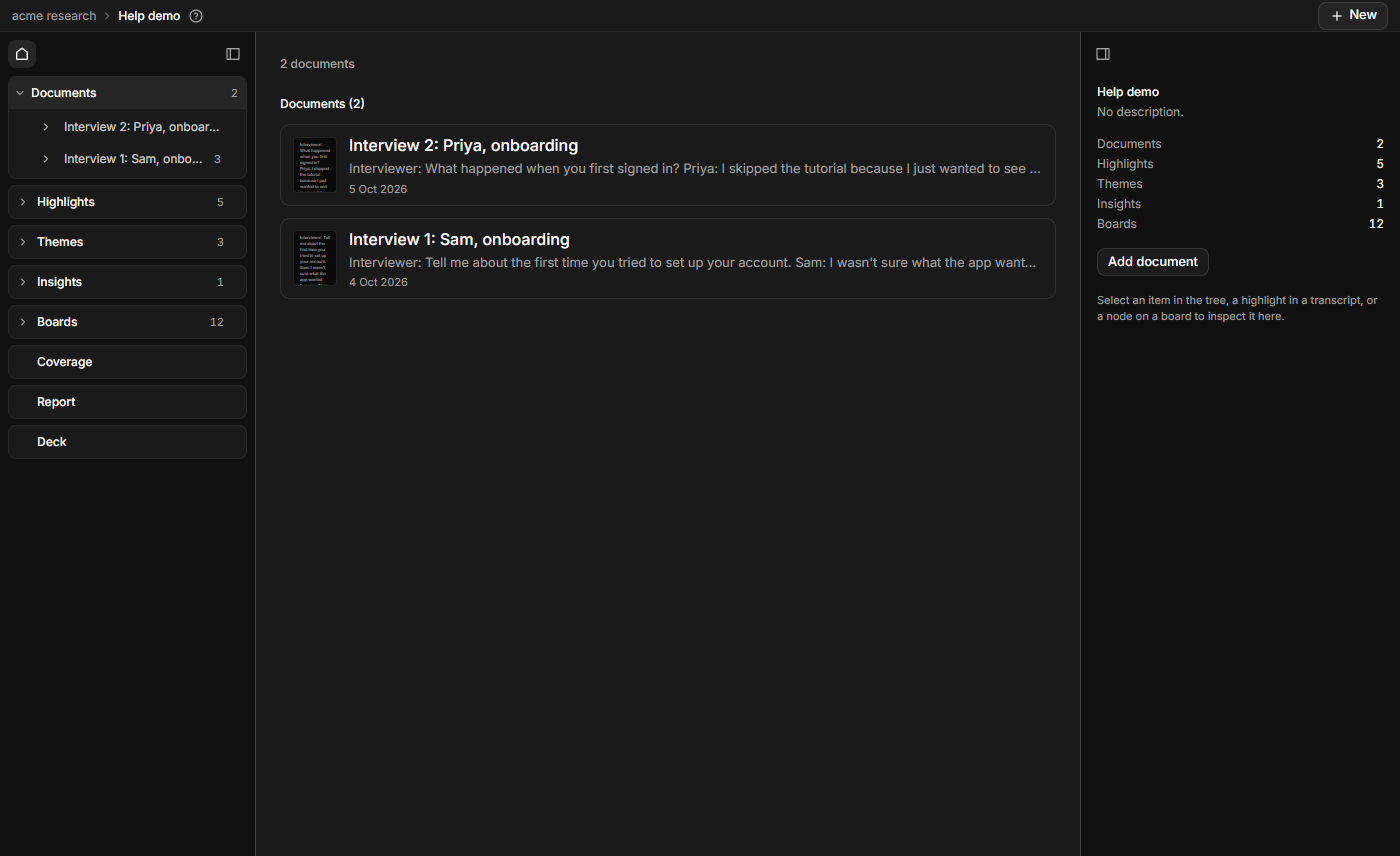
- Open the project. With nothing selected, the inspector shows its name at the top. Click the home icon (Project overview) in the tree toolbar if it doesn't.
- Click the name in the inspector.
- Type the new name and press Enter. Escape puts the old name back.
The project's web address changes with its name, and the page reloads at the new address. Anything bookmarked with the old address stops working. If another project already has the new address, yours gets a number on the end, such as -2. A change that only alters capital letters keeps the address.
What the inspector shows
The inspector lists the project's counts: Documents, Highlights, Themes, Insights and Boards. They match the numbers in the tree. To add material, see Add a document and Create a board.
Archive a project
Archive a project you are done with, to clear it off the Projects list without deleting anything.
- Click Projects to open the list.
- Click the "⋯" button at the right of the project's row (Project actions for the name).
- Click Archive.
The row leaves the list at once and moves under Archived, a folded heading with the count, such as "Archived (2)". Click it to open the list. Archived rows are faded and carry an Archived badge. Nothing is removed: click a row to open the project, and everything in it is still there. The overview shows the same badge.
To bring it back, open Archived, click the "⋯" button on the row and click Unarchive. Anyone in the organisation can archive and unarchive. If the change doesn't save, the row goes back and a message says so.