Use the right-click menu
You get the common actions for the shape or the empty canvas under the pointer, with the key beside each one. Every kind of board has a menu. The first part of this page covers process diagrams, service blueprints, journey maps and affinity boards. The rest covers the prototype canvas.
On a process diagram, blueprint, journey map or affinity board
Right-click a step, a card, an arrow or the empty canvas. A right-click on something that isn't selected selects it first.
- On a step or card: Rename (Enter, not on affinity boards), Delete (Del), then Zoom to selection (Shift+2). On an arrow: Delete (Del) only.
- On empty canvas: Add step here, Add decision here and Add start / end here (S, D, T) on a process diagram or blueprint. A journey map has Add step here and Add emotion here (S, E). An affinity board has Add cluster here (C) and Add note here (N). Then Fit to view (Shift+1).
The new shape lands at the point you clicked.
On the prototype canvas
Select and copy shapes first, for Paste here and Replace with clipboard: see Select, arrange and undo on a prototype.
Open it
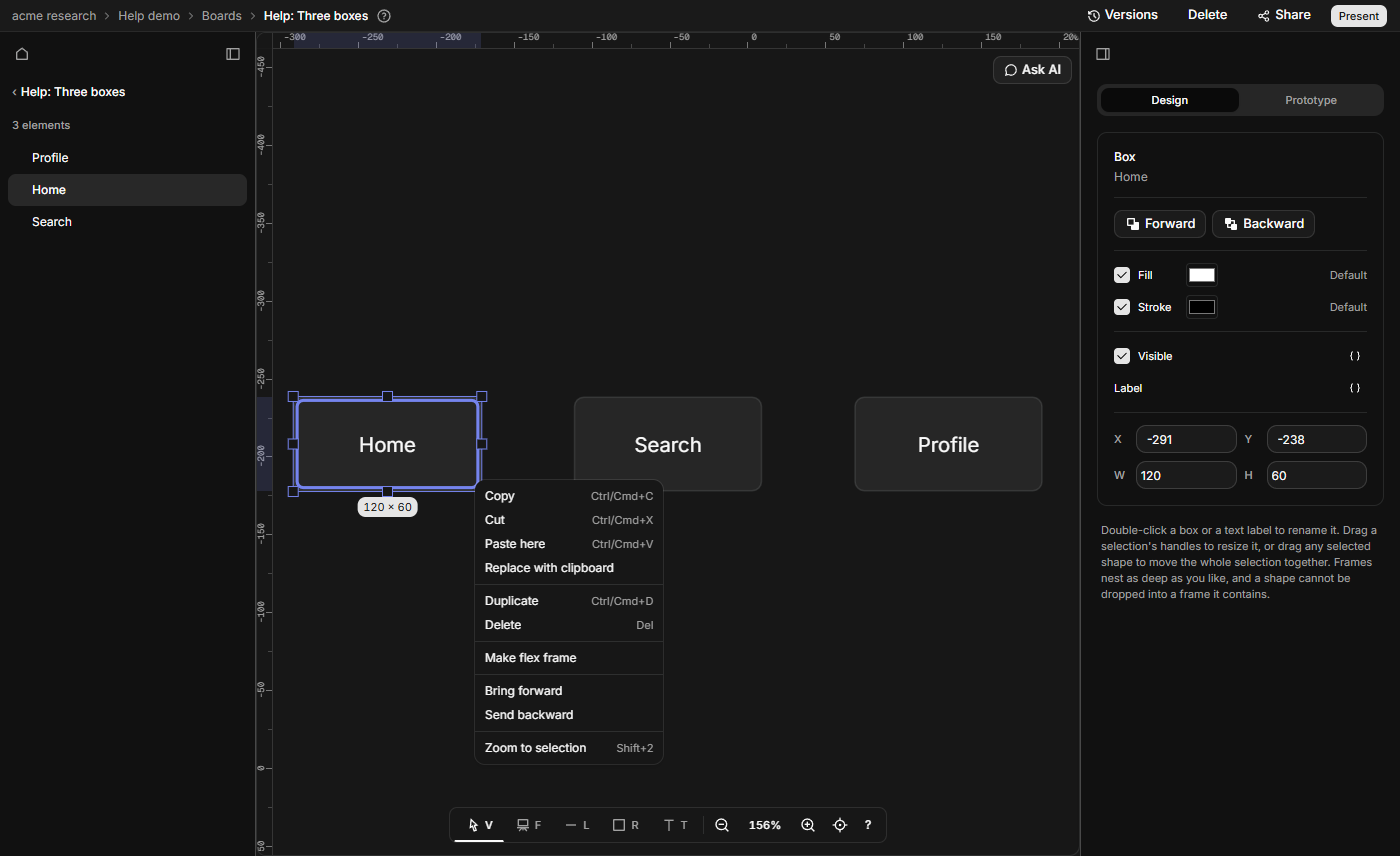
Right-click a shape, a selection or empty canvas. On a Mac, Ctrl+click does the same. On empty canvas the menu has Paste here (Ctrl/Cmd+V) and Fit to view (Shift+1). On a shape or selection it has Copy (Ctrl/Cmd+C), Cut (Ctrl/Cmd+X), Paste here and Replace with clipboard. Then Duplicate (Ctrl/Cmd+D) and Delete (Del), then Bring forward and Send backward, and last Zoom to selection (Shift+2). Create component, Detach instance, Make flex frame and Remove flex layout show up when they apply to what you selected.
- A right-click on a selected shape, or on one of several selected, keeps the selection and acts on it. Inside a selected instance or component, that stays selected. A right-click on any other shape selects it first.
- With the Select tool, a right-click on empty canvas clears the selection.
- A right-drag doesn't move the view, draw a shape or start a selection band. The menu still opens.
- While you edit a label, the browser's own menu shows instead.
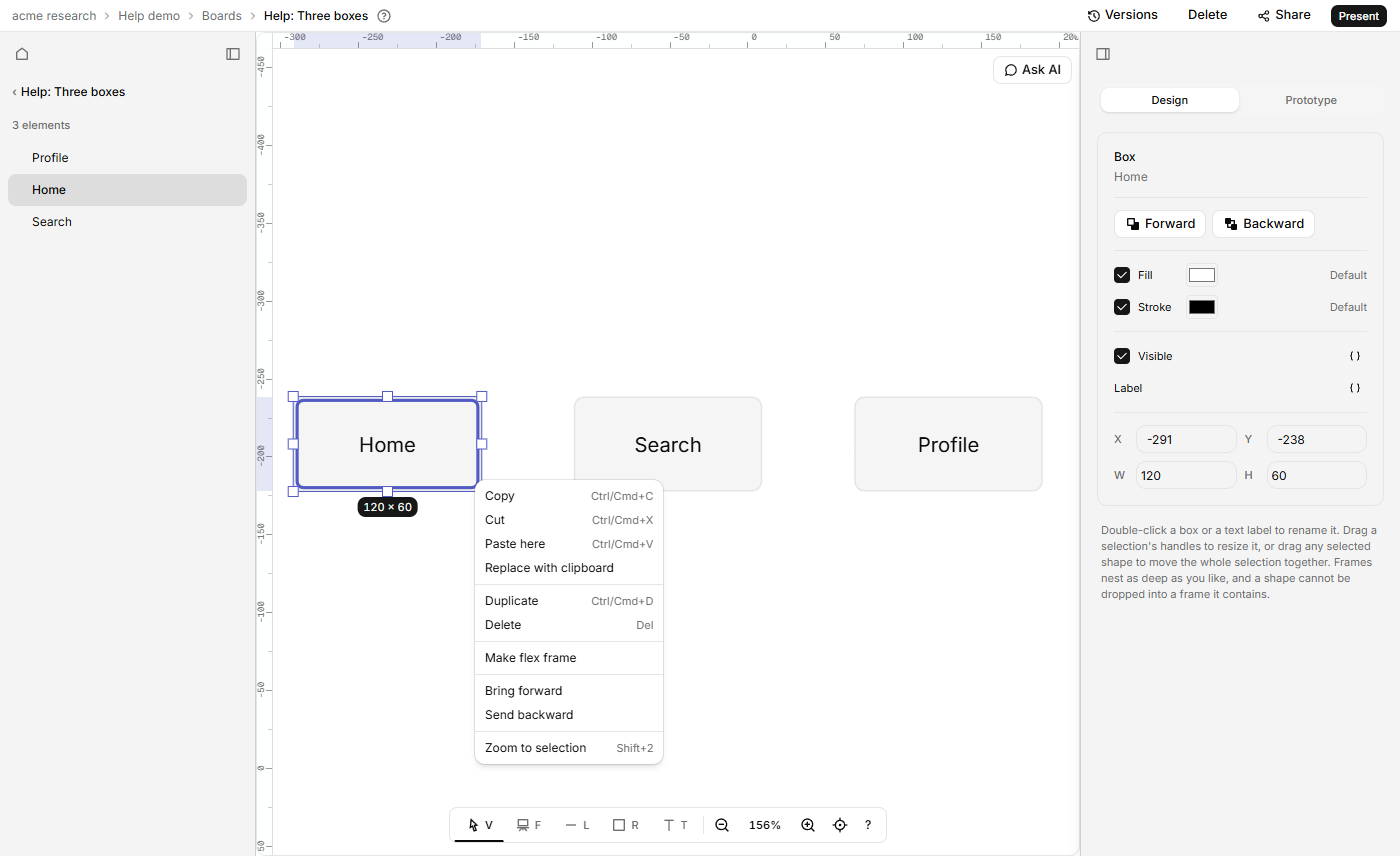
Paste here
Pastes what you copied with its top left at the point you clicked, on top of the other shapes and inside the frame under the point, as Ctrl/Cmd+V does. It reads the clipboard when you click it, so your browser may ask permission. If it can't, it says "Can't read the clipboard here. Press Ctrl+V to paste at the pointer." If you copied no shapes, it says "Nothing to paste."
Replace
With exactly one shape selected, Replace with clipboard swaps it for what you copied. The copies take its corner, its frame and its place in the stack, and it goes with everything inside it, arrows included. One Ctrl/Cmd+Z puts it all back. With any other selection, or a part inside a component copy, it is greyed out.
Like Paste here, it reads the clipboard and refuses what a paste refuses: "Nothing to paste.", "Those shapes are from another organisation." and "Copy its component too."
It also refuses what Delete refuses, such as a component that still has copies. And it refuses a shape that has, or contains, evidence or logic links, because deleting it would lose them for good: "This shape has 2 evidence or logic links. Remove them first, or delete the shape."
Bring forward and Send backward
These move one selected shape a step in the stack. They are greyed out when the shape is already at that end, when several shapes are selected, with nothing selected, and for a part inside a component copy. One Ctrl/Cmd+Z undoes a move.
Close it
Esc, or a click anywhere else, closes the menu, and the click does nothing else. The arrow keys and Enter still move through the menu, but the board's keys, such as Backspace and Ctrl/Cmd+Z, do nothing while it is open. The keyboard can't open it: to paste at the pointer without the menu, press Ctrl/Cmd+V.